Follow the steps below to get set up on your first day.
First-Time Password Set Up
- Go to: https://childrens.identitynow.com/r/default/reset-password
- Enter your BCH Enterprise Login at the login page. You can find your Enterprise Login in the IT Welcome Email.
- Select “Send code” or “alternate email”
- This will send a 6-digit code to your email or phone via SMS
- Enter the 6-digit code and click “Continue"
- Create your new password
- Your password must have the following:
- At least 8 characters
- At least 1 letter
- At least 1 numeric character
- Your password must have the following:
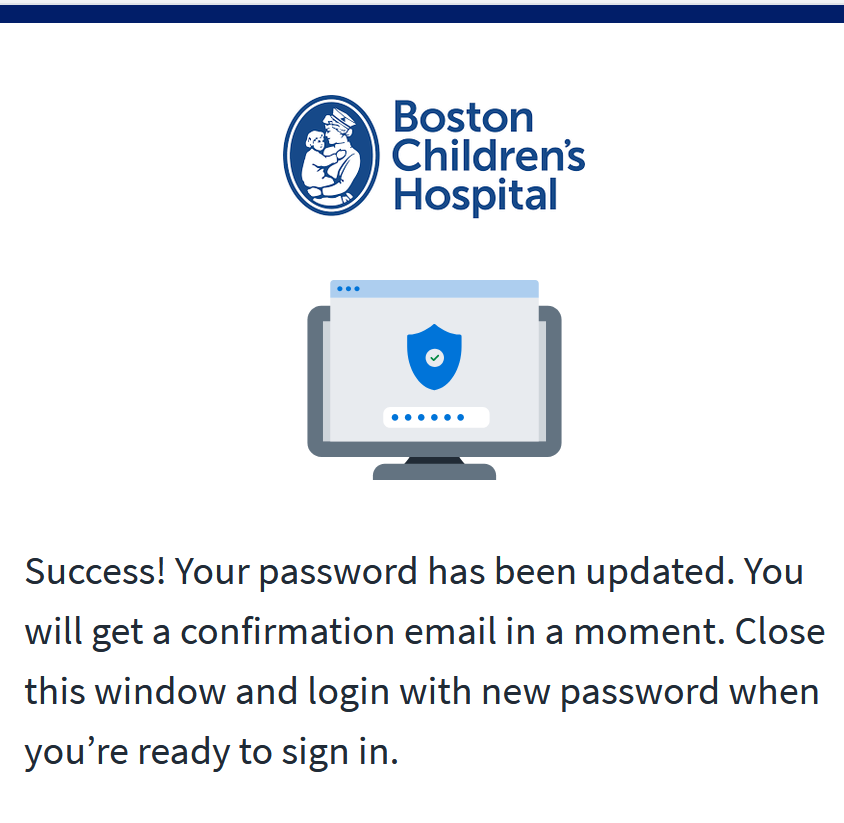
- Password Setup Confirmation
Set Up Microsoft Authenticator
- Open the App Store on Apple devices or the Google Play Store on Android devices
Search for Microsoft Authenticator and tap “Install” or “Get”
- Once the download finishes, open the app
- Continue to the next step - Access Your Email
Access Your Email
Note: If you are connected to the BCH network or VPN, you will be able to access email automatically through SSO. If you are not signed in automatically, follow the steps below.
Use Outlook on the web when you are working on campus or away from the BCH network.
Perform these steps via a web browser on a computer, not mobile device.
- Go to: https://outlook.office.com/mail/
- Note: If you are onsite or on VPN, you do not need to proceed to the next step. You will be taken to your Outlook inbox and no further actions is required.
- Enter your new BCH email address in the Microsoft Login Screen
Enter your password
Select “Next” to complete the Multi-Factor Authentication
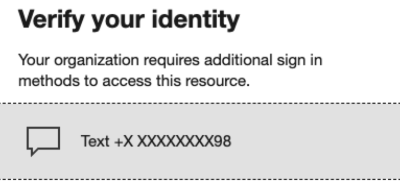
- Verify your identity: Select the Text Sign-in method to verify. This will send a 6-digit code to your mobile device via SMS
- Enter the code you received via text
- Select “Next” on the Install Microsoft Authenticator screen and “Next” to add your account to the Authenticator app
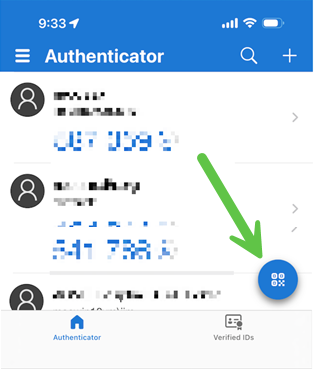
- Open Microsoft Authenticator on your mobile device
- This will add the Boston Children's Hospital account to the Microsoft Authenticator app.
Select the circle scan icon in the app shown in the screenshot below
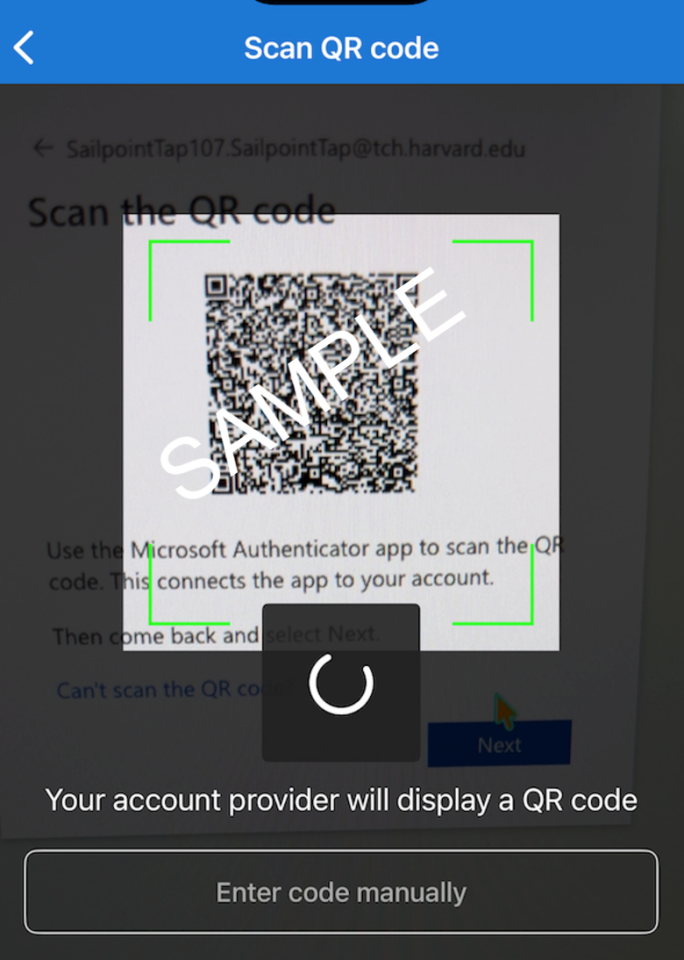
Scan the displayed QR code with your phone
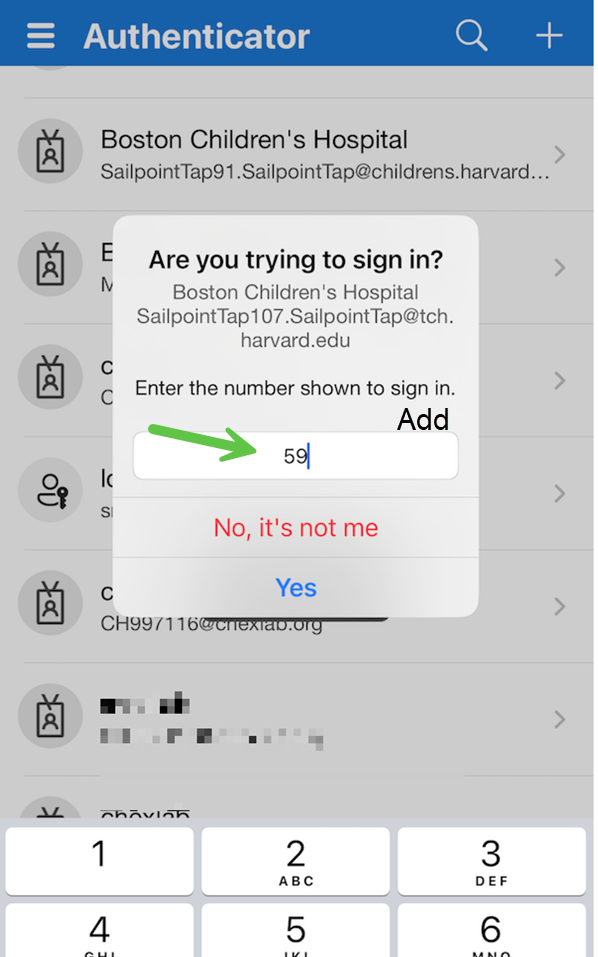
Open the Microsoft Authenticator app on your phone and enter the number shown to approve the sign-in request
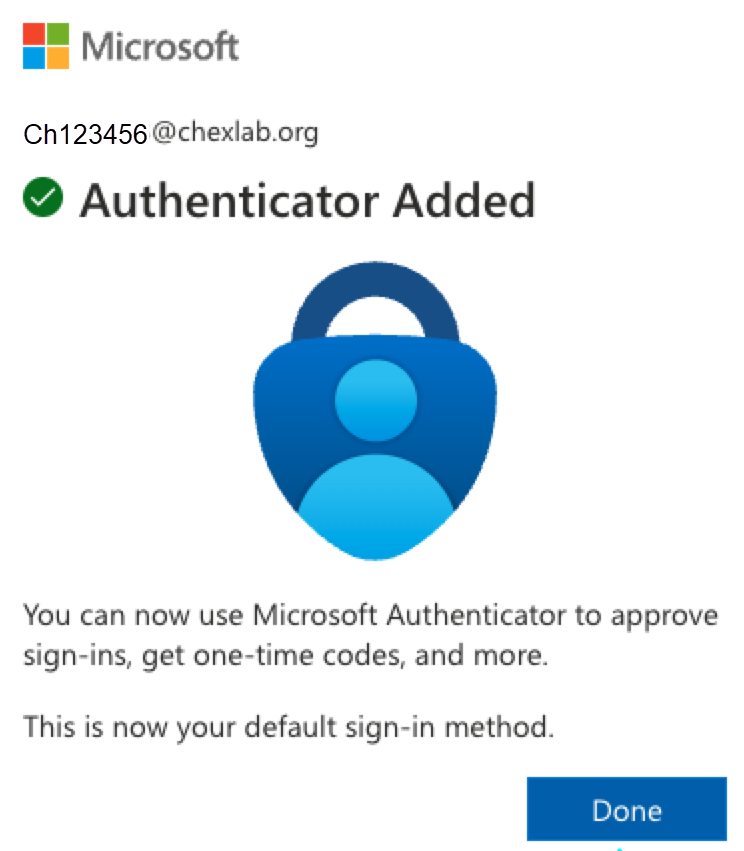
- Confirm Authenticator added your account
Once added to Microsoft Authenticator, your account will be available for future logins.
- You will now be taken to your Boston Children's Hospital email inbox